HTML Links, JS Functions, and Intro to CSS Layout
HTML Book
Chapter 4 “links” ::
- Writing Links
- Links are created using the
<a>element. Users can click on anything between the opening<a>tag and the closing</a>tag. You specify which page you want to link to using the href attribute. - element which has an attribute called href. The value of the href attribute is the page that you want people to go to when they click on the link.
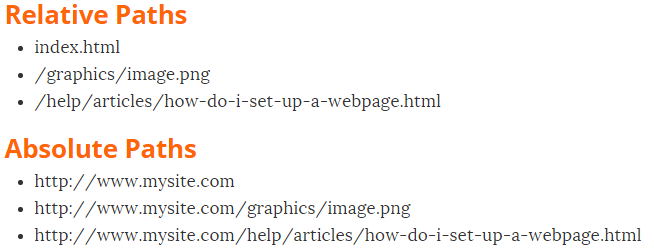
- Absolute URLs URL stands for Uniform Resource Locator,An absolute URL starts with the domain name for that site, and can be followed by the path to a specific page. If no page is specified, the site will display the homepage.
- When you are linking to other pages within the same site, you do not need to specify the domain name in the URL. You can use a shorthand known as a relative URL.
- Relative URLs When linking to other pages within the same site, you can use relative URLs. These are like a shorthand version of absolute URLs because you do not need to specify the domain name.
- Directory Structure
-
Structure The top-level folder is known as the root folder ,The root folder contains all of the other files and folders for a website. Each section of the site is placed in a separate folder; this helps organize the files.
-
Relationships The relationship between files and folders on a website is described using the same terminology as a family tree.
-
Homepages The main homepage of a site written in HTML ,Web servers are usually set up to return the index.html file if no file name is specified.
- Every page and every image on a website has a URL, The URL is made up of the domain name followed by the path to that page or image.
- there are two types of file paths
Email Links
- mailto: To create a link that starts up the user’s email program and addresses an email to a specified email ddress, you use the
<a>element. However, this time the value of the href attribute starts with mailto: and is followed by the email address you want the email to be sent to.
- Opening Links in a New Window
- target use the target attribute on the opening
<a>tag. The value of this attribute should be _blank.
- Linking to a Specific Part of the Same Page
To link to an element that uses an id attribute you use the <a> element again, but the value of the href attribute starts with the # symbol, followed by the value of the id attribute of the element you want to link to. In this example, <a ref="#top"> links to the <h1> element at the top of the page whose id attribute has a value of top.
- Linking to a Specific Part of Another Page
the href attribute will contain the address for the page (either an absolute URL or a relative URL), followed by the #symbol, followed by the value of the id attribute that is used on the element you are linking to.
Chapter15 “layout” ::
Building blocks
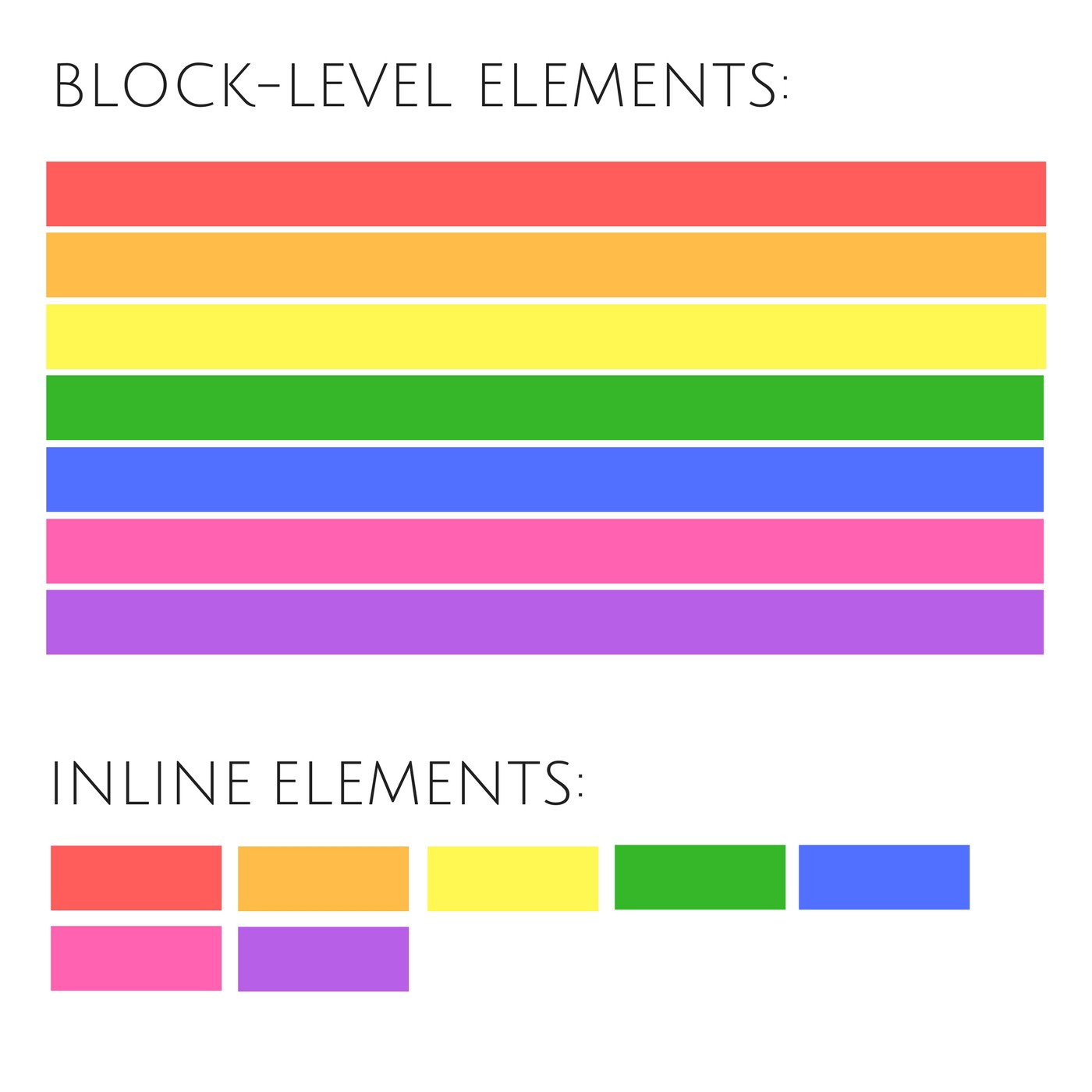
- i.Block-level elements start on a new line.
- ii.Inline elements flow in between surrounding text.
Controlling Elements ::
- Controlling the Position of Elements
- CSS has the following positioning schemes that allow you to control the layout of a page:
- Normal flow Every block-level element appears on a new line, causing each item to appear lower down the page than the previous one. Even if you specify the width of the boxes and there is space for two elements to sit ide-byside, they will not appear next to each other. This is the default behavior (unless you tell the browser to do something else).
- Relative Positioning This moves an element from the position it would be in normal flow, shifting it to the op, right, bottom, or left of where it would have been placed. This does not affect the position of surrounding elements; they stay in the position they would be in in normal flow.
- Absolute positioning This positions the element in relation to its containing element. It is taken out of normal flow, meaning that it does not affect the position of any surrounding elements (as they simply ignore the space it would have taken up). Absolutely positioned elements move as users scroll up and down the page.
- To indicate where a box should be positioned, you may also need to use box offset properties to tell the browser how far from the top or bottom and left or right it should be placed.
-
Fixed Positioning This is a form of absolute positioning that positions the element in relation to the browser window.
-
Floating Elements Floating an element allows you to take that element out of normal flow and position it to the far left or right of a containing box. The floated element becomes a block-level element around which other content can flow.
- Using Float to Place El ements Side-by-Side.
- The clear property allows you to say that no element (within the same containing element) should touch the sides of a box. It can take the following values:left, right, both, none.
- z-index property allows you to control which box appears on top.
-
### Examples ::
#### Normal flow :: –> position:static

—
Relative Positioning –> position:relative

—
Absolute Positioning –> position:absolute

—
Overlapping Elements ( z-index) –> z-index: value
.png)
—
Fixed Positioning –> position:fixed

—
🎗️ How to use float to place Elements SIDE BY SIDE

🎗️ Parents of floated elements : Problem & Solution
i. Problem

ii. Solution

🎗️ How to Creating Multi-Column Layouts with Floats

JavaScript Book
Chapter 3 “Functions, Methods, and Objects” ::
-
Functions let you group a series of statements together to perform a specific task. If different parts of a script repeat the same task, you can reuse the function (rather than repeating the same set of st atements.
-
To create a Function, you give it a name and then write the statements needed to achieve its task inside the curly braces. This is known as a function declaration.
- FUNCTION DECLARATION A function declaration creates a function that you can ca ll later in your code. It is the type of function you have seen so far in this book.
function functionName(parameters) {
// code to be executed
} - Calling Function: you can then execute all of the statements between its curly braces with just one line code,when you call a function that has parameters, you specify the values it should use in the parentheses that follow its name. The values are called arguments, and they can be provided as values or variables.
- some functions return information to the code that called them. For example, when they perform calculations, they return the result,Functions can return more than one value using an array. For example, this function calculates the area and volume of a box.
-
Expressions produce a value. They can be used where values are expected. If a function is placed where a browser expects to see an expression, (e.g., as an argument to a function), then it gets treated as an expression.
-
VARIABLE SCOPE The location where you declare a variable will affect where it can be used within your code. If you declare it within a function, it can only be used within that function. This is known as the variable’s scope.
- LOCAL VARIABLES When a variable is created inside a function using the var keyword, it can only be used in that function. It is called a local variable or function-level variable
-
GLOBAL VARIABLES If you create a variable outside of a function, then it can be used anywhere within the script. It is called a global variable and has global scope. In the example shown, wa 11 Size is a global variable.
- Global variables use more memory. The browser has to remember them for as long as the web page using them is loaded. Local variables are only remembered during the period of time that a function is being executed.